


-
- Home
>
-
- Blog
>
-
- SIEM Trends
Exabeam Advanced Analytics Tips: Targeted Search and Tuning Rules
- Jul 15, 2020
- Cynthia Gonzalez
- 3 minutes to read
Table of Contents
Exabeam Advanced Analytics offers SOC analysts modern threat detection using behavioral modeling and machine learning. Here are two tips on how to get the most out of your Advanced Analytics deployment.
Improve Searching for Alert IDs
Advanced Analytics ingests alerts from multiple third-party systems and integrates those alerts into user timelines. Alerts are often the first sign of suspicious activity on your network. But when an alert comes in for just one user, you’ll need more information and the context for that alert for it to be useful. With Advanced Analytics you can determine just how many users have experienced the same suspicious behavior.
In the course of an investigation it would be beneficial to know if any other users in your organization have also triggered this same alert and potentially have been exposed to the same malware. In the example below, one of the events in Barbara’s timeline is a Palo Alto Networks alert flagging the amount of outbound traffic volume in her account.
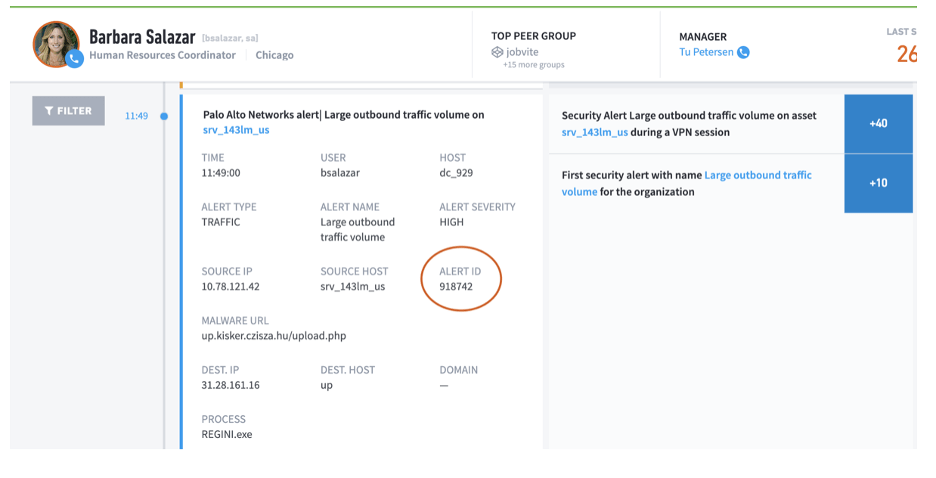
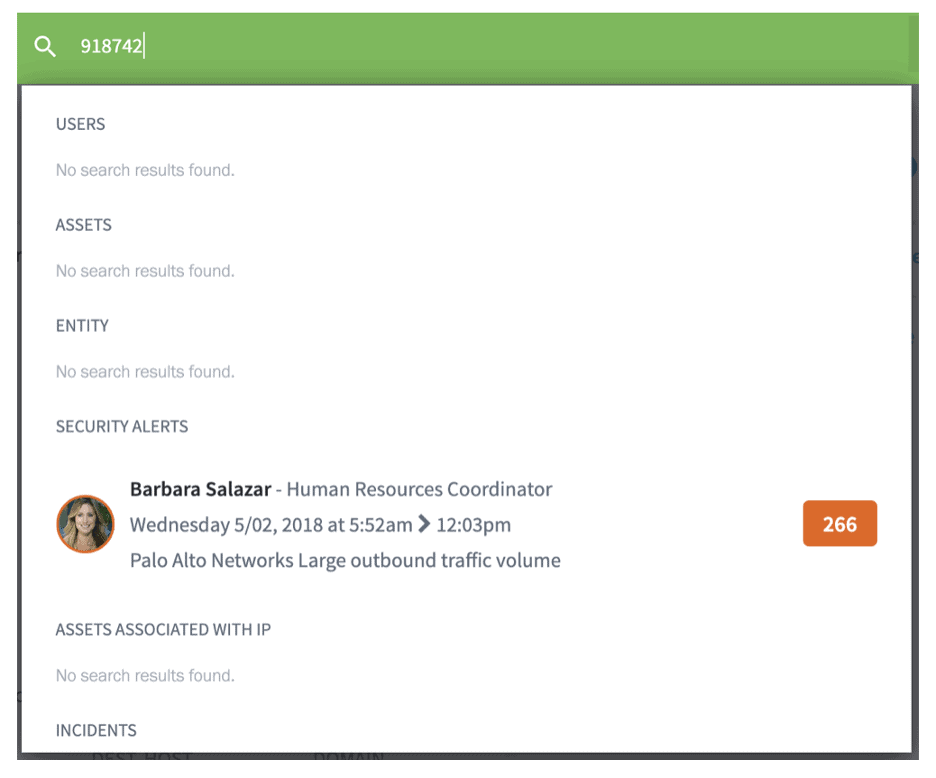
You can copy and paste that Alert ID into the search bar to see if any other user has also triggered that same security alert. From the results below, you’ll see that in this particular case Barbara was the only user to turn up as having that alert.
Adjusting a rule’s score
As important as alerts are, it can be all too easy to fall victim to alert fatigue. With a few simple steps, you can improve the accuracy of the alerts you’re getting and reduce the number of false positives. Here’s how you can tune a rule’s score in Advanced Analytics.
A rule’s score is the numerical representation of the risk associated with that rule. The rule scores of a given session are added up to equal the total session score. Note that these scores are adjusted based on historical data and trends if Histogram shaping and Bayesian scoring are enabled.
If a score is 0, the rule will not show up in the user timeline at all.
Occasionally, some rules may need to have their scores reduced. This can help in cases where sessions are overwhelmed with insignificant anomalies or there are a large number of false positives.
There are two ways to adjust a rule’s score.
Method 1
Step 1: From any page navigate to Settings > Admin Operations > Exabeam Rules
Step 2: Search for the rule you want to modify. Rule IDs cannot be searched but Rule Names can be. In the following example we are editing a rule called Asset attempted to connect to an IP address which is associated with Ransomware. This rule has an existing score of 30. To reduce it simply click and drag the red dot down. Possible score options are:
- Low
- Medium
- Critical
- Severe
- Alarming
The numerical value assigned to each of these terms will be different based on the rule and how critical it is.
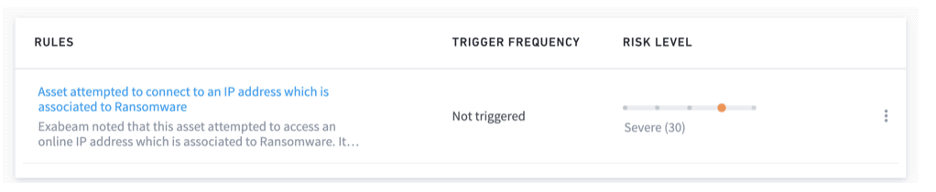
Step 3: New rule scores will not take effect until you click Reload All Rules at the top right.
Method 2
Step 1: From any page navigate to Settings > Admin Operations > Exabeam Rules
Step 2: Search for the rule you want to modify. Rule IDs cannot be searched but Rule Names can be. In the following example we are editing a rule called Asset attempted to connect to an IP address which is associated with Ransomware. This rule has an existing score of 30. Click on the vertical ellipsis and select Advanced Editor.
Step 3: The Advanced Editor lets you input your own numerical score. Simply locate the Score field and enter your score within the quotations. Non-integer scores are accepted.
Step 4: Click Save and Reload All
I hope you found these tips useful. We will continue to publish tips for getting the most out of your Advanced Analytics deployment. If there are any specific topics you’d like to see, drop me a note in the comments section of our LinkedIn or Twitter posts.

Cynthia Gonzalez
Senior Product Marketing Manager | Exabeam | Cynthia Gonzalez is a Senior Product Marketing Manager at Exabeam. An advocate for customers, she’s focused on their use of technology to enable and simplify day-to-day work activities. She is at her best when bridging the gap between sophisticated software products and the benefits customers can expect. She received a BA with majors in Economics and Spanish from the University of California, Berkeley.
More posts by Cynthia GonzalezLearn More About Exabeam
Learn about the Exabeam platform and expand your knowledge of information security with our collection of white papers, podcasts, webinars, and more.


